

🪄 Step 1 — Sign Up
Go to and click “Create Account”. You can register using:- Your email address, or
- A third-party provider (if enabled on your workspace).
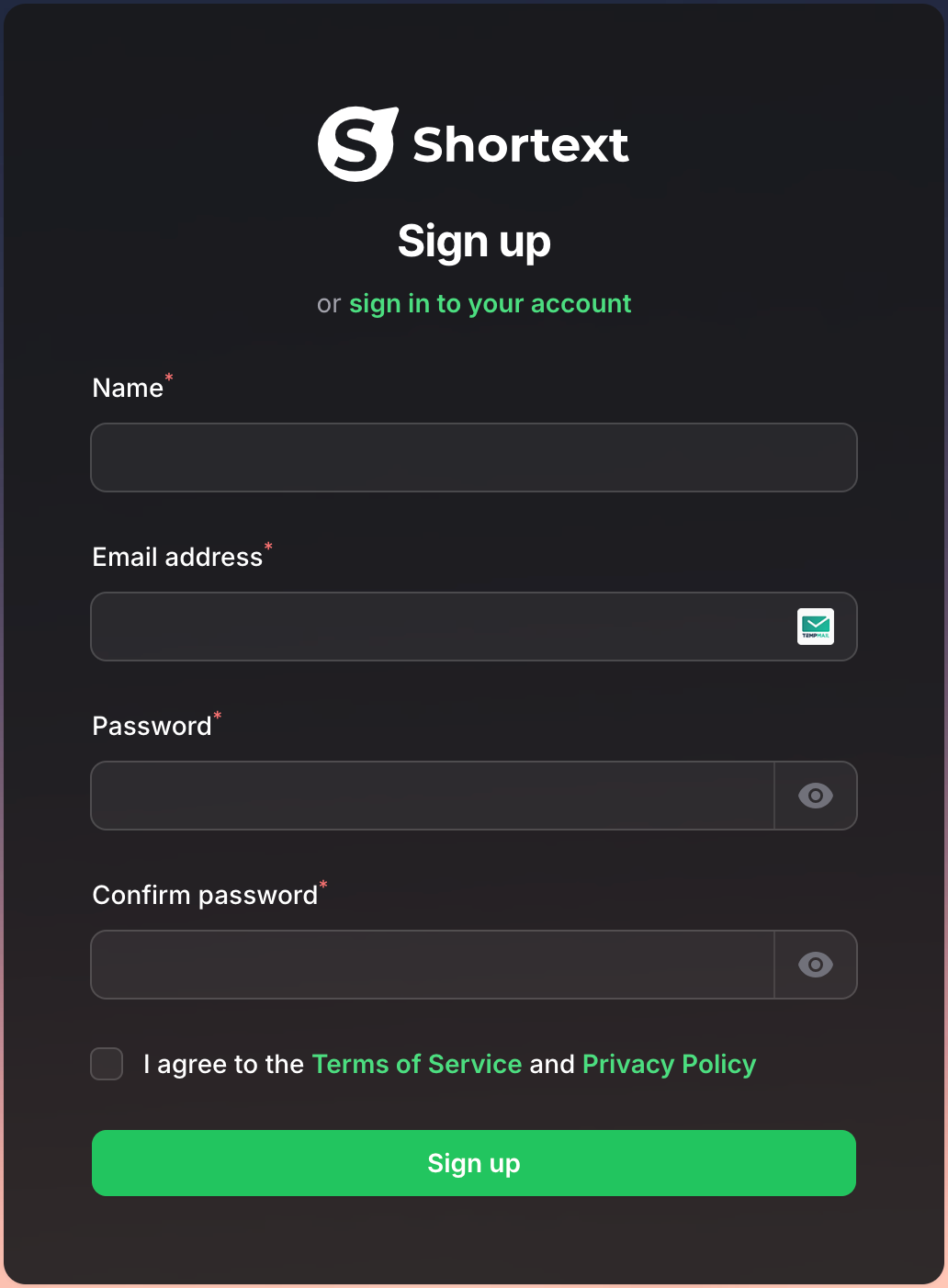
Use a valid business email to ensure smooth account verification and communication.
🧩 Step 2 — Verify Your Email
After signing up, you’ll receive a verification email. Click the “Verify Account” button to activate your profile.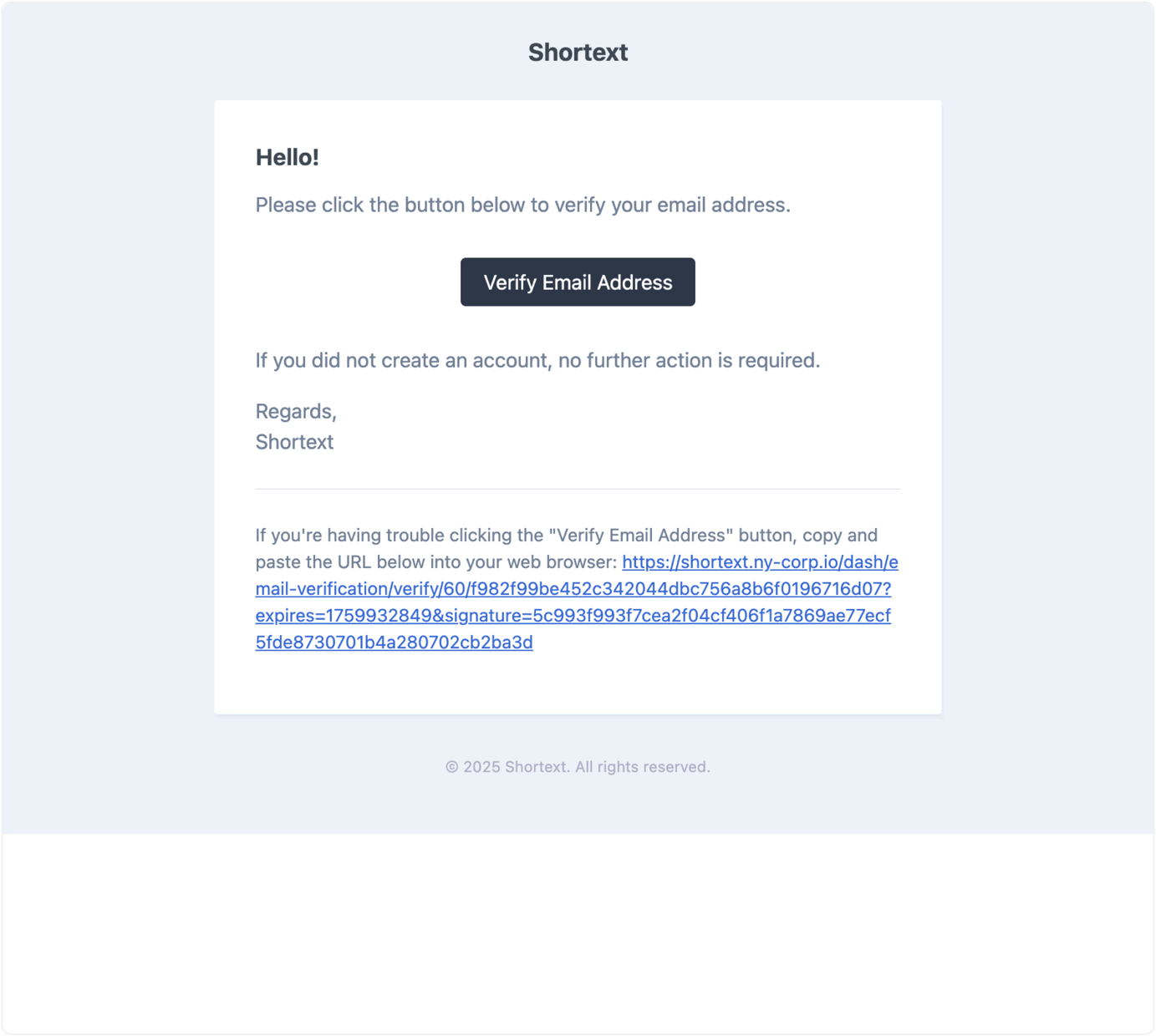
Once verified, you’ll be redirected automatically to your dashboard.
💼 Step 3 — Complete Your Profile
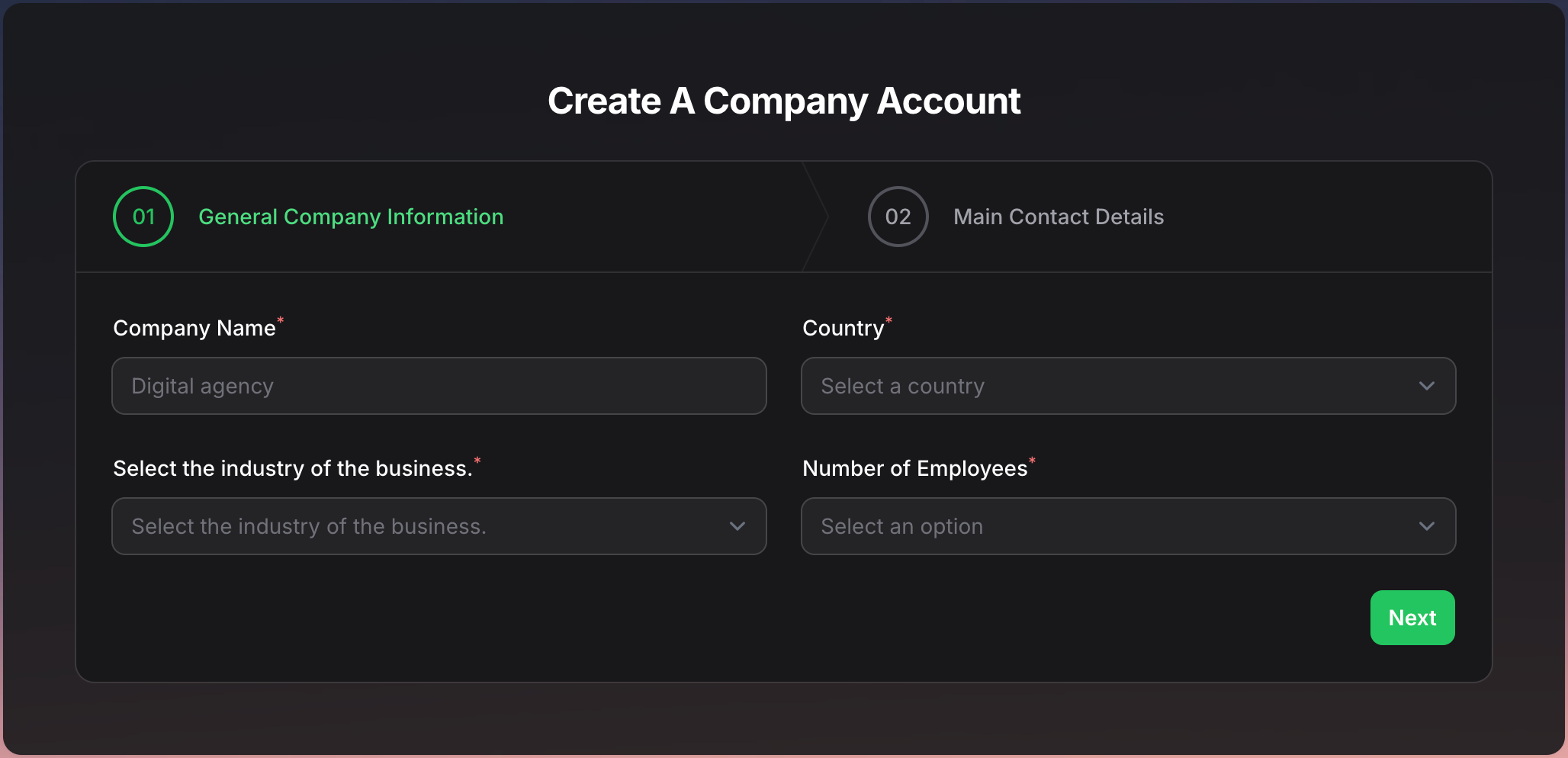
To personalize your experience, Shortext will ask for a few details:- Your Company or Project Name
- Your Primary Use Case (e.g., Customer Support, Sales, Recruitment)
- Your Country / Region
🖥 Step 4 — Explore Your Dashboard
Once you’re logged in, you’ll arrive at the Shortext Dashboard — the control center of your communication ecosystem.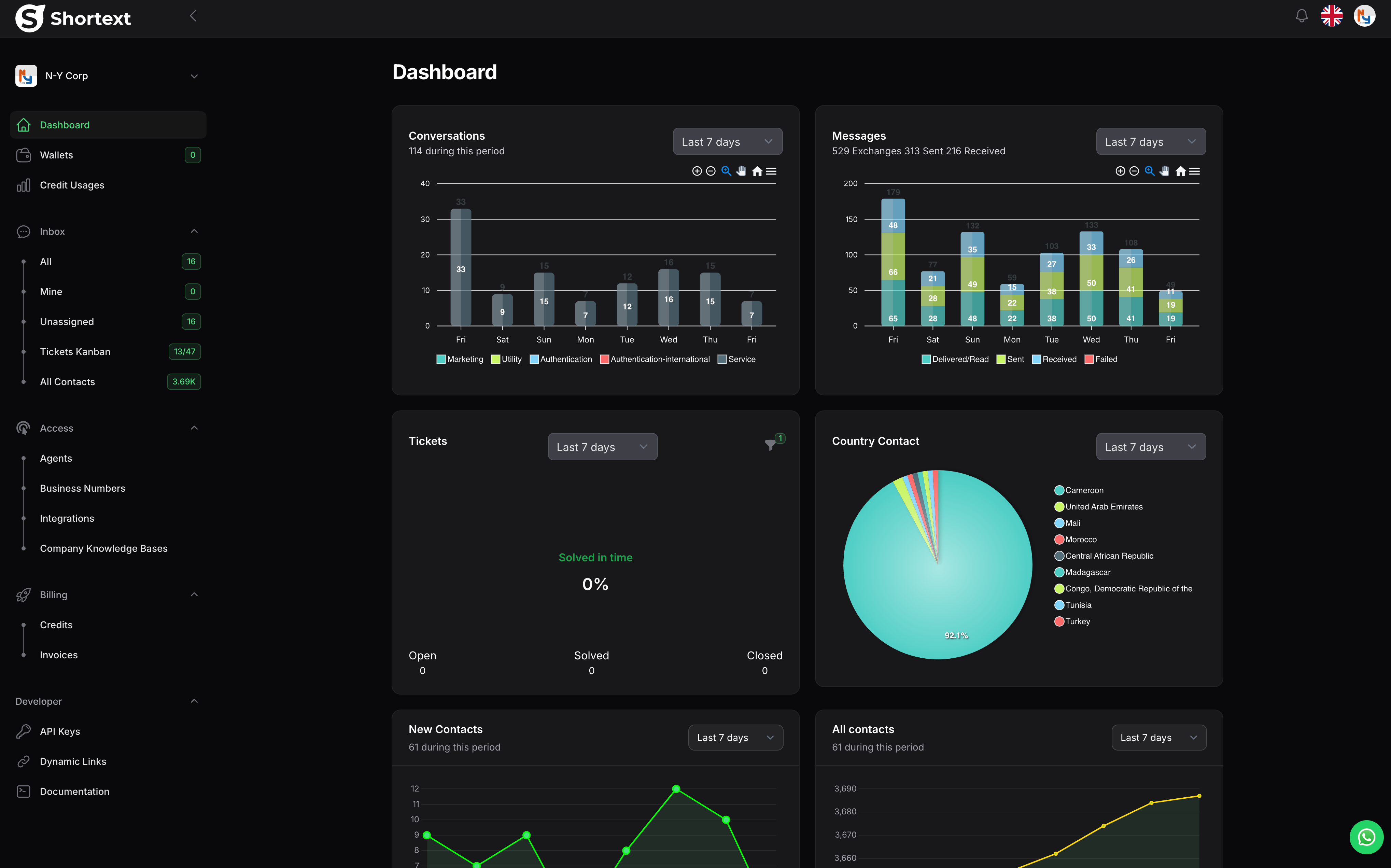
- Create and manage AI Agents
- Monitor Conversations and Sessions
- Configure APIs and Integrations
- Access Billing and Account Settings
If this is your first time, explore the sidebar menu to familiarize yourself with key modules like “Agents”, “Messages”, and “Automations”.
⚙️ Step 5 — Next Steps
You’re all set to start using Shortext 🎉 Continue with:Need assistance during setup?
You can chat directly with our support agent inside the dashboard or check the FAQ section.